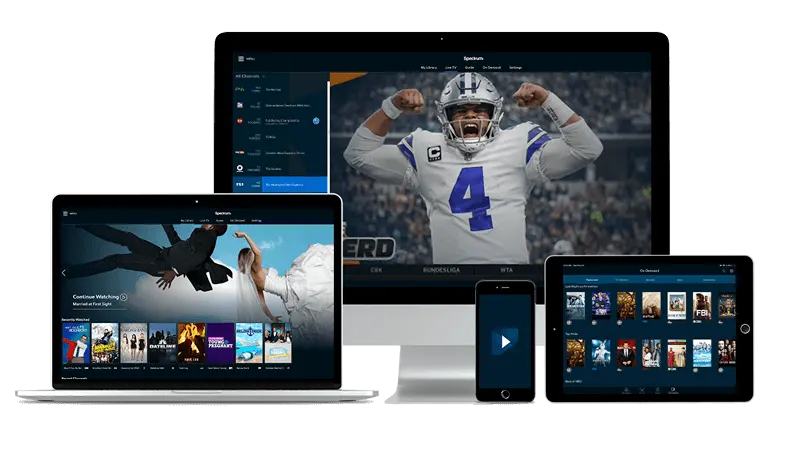
Remote apps for your phone: what US households should know
This piece is for whoever handles the tech in the household — the person who reboots the router, reads the error messages, and figures out why the TV stopped working. By the end, you will know what a phone remote app does, which ones pair with which devices, and how to confirm the whole thing is running the way it should.
Streaming TV over your home internet connection means the same phone in your pocket can also act as a full remote control. No separate hardware, no pairing codes mailed to you — just an app that talks to whatever is showing the picture.
What a phone remote app actually does
A remote app sends commands across your local Wi-Fi network rather than over Bluetooth or infrared. That matters because the phone and the streaming device both need to be on the same network — if the phone is on mobile data or a guest network, the app will not find anything to control.
The apps most commonly used with IPTV players are built into the players themselves. TiviMate, for instance, has a companion phone app that lets you browse the channel list, adjust volume, and switch inputs without touching the physical remote. IPTV Smarters Pro works similarly on Android TV and Google TV devices. The phone becomes a second screen: you can search for a channel by typing on a real keyboard instead of hunting through an on-screen grid with arrow keys.
MAG boxes handle this differently. They run a portal interface, and most households control them with the included physical remote or through a web-based interface on a laptop rather than a dedicated phone app. If you have a MAG box and want phone control, a generic IR remote app paired with a Wi-Fi-to-IR blaster is the usual route — but that is a separate piece of hardware, not a software-only solution.
For browsing channel categories in TiviMate on the Chromecast with Google TV, the phone companion app is especially useful because Chromecast remotes have no keyboard input at all.
Before you install anything: what to check first
The single most common reason a phone remote fails to connect is that the phone is not on the same Wi-Fi network as the TV or streaming stick. Check this before you download a single app.
Open Wi-Fi settings on the phone. Look at the network name. Then go to the streaming device's network settings and confirm it shows the same name. A router that broadcasts both a 2.4 GHz and a 5 GHz band sometimes assigns the phone to one band and the TV to the other — they may show different names, or they may show the same name and still route to separate subnets depending on the router model. If your router has a setting called 'band steering' or 'smart connect', devices can land on different bands without warning.
Also check that the streaming device has a static or reserved IP address if you plan to use the remote app daily. Consumer routers reassign addresses on a schedule, and after a lease renewal the app may lose the device until you reconnect manually. Most home routers let you reserve an IP for a specific device in the DHCP settings — look for a section called 'Address Reservation' or 'Static DHCP'.
Finally, make sure the firewall on a Windows or Mac computer is not blocking local network traffic if you plan to run a player there. Windows in particular sometimes treats a home network as 'public' after an update, which blocks the ports remote apps use.
Setting up the connection
The steps vary slightly by player, but the pattern is consistent: install the companion app on the phone, open the main player on the TV or streaming device, find its remote or companion settings, and either scan a QR code or enter a code shown on the TV screen.
- Install the player's companion app from the App Store or Google Play on your phone.
- On the streaming device, open the player and go to Settings, then look for 'Remote Control', 'Phone Remote', or 'Companion App' — the label differs.
- The player will display a code or a QR code. Scan it or type it into the phone app.
- The phone app should show 'Connected' or display the channel list within a few seconds.
If the code screen times out before you finish, it usually refreshes automatically. If the phone app says it cannot find the device, go back to the network check above before trying again.
On a Fire TV Stick, Amazon's own Fire TV app for iOS and Android also acts as a full remote and keyboard, which is useful even if you use a third-party IPTV player on top of it. The Fire TV app connects through your Amazon account rather than a code, so it tends to reconnect reliably after the TV has been off for a while.
If you're in the Kansas City area and just getting started with streaming, the guide on streaming TV in Kansas City covers the broader setup process from the beginning.
After setup: how to tell it's working properly
A connected remote app should respond within a moment of a tap — if there is a noticeable lag, the Wi-Fi signal between the phone and router, or between the router and the streaming device, is the first place to look. Move the phone closer to the router and test again. If lag disappears, the problem is signal strength rather than configuration.
Test each function you plan to use: channel switching, volume, search, and playback controls. Some apps connect successfully but only expose a subset of controls depending on the player version. If the channel list appears on the phone but tapping a channel does nothing on the TV, check whether the player on the TV needs a permission granted — Android TV in particular sometimes prompts for 'remote control access' after a fresh install.
For sports viewing, the phone remote becomes most useful when you want to bookmark NFL football channels without navigating a slow on-screen keyboard. Typing a search term on the phone and watching it appear instantly on the TV is the practical payoff for getting the setup right.
If everything works at setup but stops working after a day or two, the IP address reassignment issue mentioned earlier is usually the cause. Reserving the streaming device's address in the router settings is a ten-minute fix that prevents it from coming back.
When login details arrive and what to do with them
After completing a plan purchase, login credentials arrive by email, usually within a short time. The email contains the details needed to configure a player — typically a server address, a username, and a password, or an M3U link depending on the player you use.
Enter those details into the player on the TV or streaming device first. Get the main app working, confirm you can see channels and picture, and only then connect the phone remote. Troubleshooting is easier when you separate the two steps: a working player first, remote control second.
If you share the household with others, one set of login credentials covers the plan. There is no need to set up a separate account per device — the same credentials go into each player on each device in the home. The IPTV Computer plans page has the available options if you have not chosen a plan yet.
Quick answers
- Do I need to buy a separate remote app, or is one included with the player?
Most major players include a companion phone app at no extra cost — TiviMate and IPTV Smarters Pro both have them. Download the companion from the same store you use for other apps, then pair it with the player running on your TV or streaming device.
- My phone app connects but then loses the device every few days. What causes that?
The streaming device's IP address is likely changing when the router renews its lease. Go into your router's settings and reserve a fixed address for the streaming device under DHCP or Address Reservation, and the app will find it reliably each time.
- Can I use the phone remote on a different Wi-Fi network, like at a relative's house?
Phone remote apps work over local Wi-Fi and require the phone and streaming device to be on the same network. At a different location, you would need to bring the streaming device and connect both to the same router there.
- Does the phone remote work while the TV screen is off?
It depends on the streaming device. Fire TV Sticks and Android TV boxes typically keep the network connection alive in standby, so the remote app can wake them. Apple TV also supports this. Some budget Android TV boxes cut Wi-Fi in standby, requiring a press of the physical remote first.