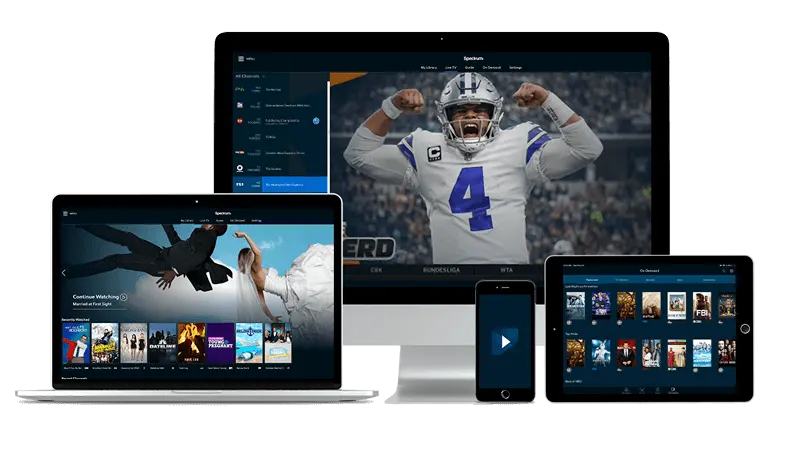
Browsing channel categories in TiviMate on Chromecast with Google TV
The most common mistake viewers make in TiviMate is scrolling through the full channel list from top to bottom, treating it like a printed TV guide. That happens because TiviMate opens to 'All channels' by default, and on a Chromecast with Google TV the list can run into the hundreds before you spot anything familiar. The fix is not more scrolling — it is switching to the groups and categories your provider already built into the feed.
This guide walks you through exactly how to do that, what to look for on screen, and how to decide which navigation style suits the way you watch.
Why the default view feels overwhelming
TiviMate loads every channel from your playlist into a single 'All channels' group at first launch. That is intentional: the app has no way to know in advance which groups matter to you, so it shows everything.
On a Chromecast with Google TV, you navigate with the D-pad on the voice remote. Scrolling a list of hundreds of channels one row at a time is slow, and the channel names blur together fast. The good news is that your provider almost certainly organized the feed into named groups — things like news, sports, kids, movies or regional channels — and TiviMate surfaces those groups in its left-hand sidebar the moment you know where to look.
Before you dig into the app settings, ask yourself one question: do you want to browse by group, or do you want to search by name? Each approach lives in a different part of TiviMate, and knowing which one you need saves a lot of button presses.
Getting to the groups sidebar
Open TiviMate and press the left arrow on your remote while the channel list is in focus. A sidebar slides in from the left edge of the screen. At the top you will see 'All channels'; below that are the group names your provider defined in the playlist.
Use the up and down arrows to highlight a group, then press the center button (the select/OK key on the Google TV remote) to open it. The main panel on the right updates immediately to show only the channels in that group. If your provider used clear names, finding a category — say, a sports block or a local news tier — takes a few seconds rather than a few minutes.
If the sidebar shows only 'All channels' and nothing else, the playlist your provider sent may not include group tags. In that case, contact your provider's support and ask whether a grouped M3U or M3U Plus link is available. Most providers offer one.
Searching when you know the channel name
Groups work well for browsing, but if you already know the channel name, the search function is faster. From anywhere in TiviMate, press the menu button (the three-line or hamburger icon, depending on your remote) to open the main menu, then select 'Search'. Type the first few letters of the channel name using the on-screen keyboard.
On a Chromecast with Google TV you can also hold the microphone button on the remote and speak the channel name — TiviMate's search field accepts the text that Google's voice input passes through. Results appear as you type, so you rarely need to spell the whole name.
This is the right approach when you know exactly what you want. If you are still exploring what the service carries, browsing by group gives you a better picture of the full range of content available.
Customizing which groups appear in the sidebar
If the sidebar shows groups you never use, you can hide them so the list stays manageable. Long-press the select button on a group name in the sidebar to bring up options for that group. One of those options lets you hide it from the list without deleting any channels.
For a broader edit, go to Settings > Channels > Groups from the TiviMate main menu. Here you can reorder groups by dragging them (the remote's select button picks up an item; the arrows move it; select again to drop it) and toggle visibility for each one. Put the groups you use daily at the top of the list, and hide the ones you rarely open. After saving, the sidebar reflects the new order immediately.
This kind of setup takes a few minutes once and saves time every day after. A household where three people share the same TV — each with different viewing habits — benefits most from a tidy, ordered group list.
For viewers who also want to control TiviMate from a phone rather than hunting through menus with the D-pad, a phone remote app can simplify text entry and navigation. And if you are setting up a streaming arrangement for the first time and want a broader overview of what the service covers, the guide to streaming TV in Kansas City covers the essentials in plain terms.
The IPTV Computer-based setup described here runs entirely over your home internet connection, with no satellite dish or cable box involved.
When groups load slowly or look incomplete
If the sidebar takes a long time to populate, or groups appear but the channels inside them do not load, the issue is almost always network speed or a provider playlist that has not refreshed. TiviMate fetches the playlist from your provider's server each time it updates.
Check two things first. Open the TiviMate main menu, go to Settings > Playlists, select your provider, and tap 'Update now'. If the update stalls, the connection between your Chromecast and the playlist server is the bottleneck — not TiviMate itself. A router sitting two rooms away with thick walls between can drop the signal enough to cause slow playlist loads. Moving the router closer, or connecting the Chromecast to the 5 GHz band instead of 2.4 GHz, usually resolves it.
If the update completes but categories are still missing, compare the groups in TiviMate's settings against what you expected from your provider. Some groups may have been hidden during an earlier session. The Settings > Channels > Groups screen shows all groups, including hidden ones, so you can restore any that disappeared.
Quick answers
- Why does TiviMate only show 'All channels' in the sidebar and no groups?
This usually means the M3U playlist from your provider does not include group tags. Ask your provider for a grouped M3U or M3U Plus link and replace the existing playlist in TiviMate's settings. Groups should appear in the sidebar after the next playlist update.
- Can I create my own custom groups in TiviMate?
Yes. In Settings > Channels, TiviMate lets you create a custom group and add individual channels to it manually. Use this for a personal shortlist of channels you watch most, regardless of which provider group they belong to.
- The group list is in a random order. How do I sort it?
Go to Settings > Channels > Groups, then drag each group to the position you want using the remote's select button to pick up and drop items. TiviMate saves the order automatically when you exit that screen.
- Does hiding a group in TiviMate delete the channels from my account?
No. Hiding a group only removes it from the sidebar view. The channels remain in your playlist and you can restore the group at any time through Settings > Channels > Groups by toggling it back to visible.